FlyWP Server CLI
Simplify Your Server Management with FlyWP’s Server CLI Tool
The FlyWP Server CLI (fly) is your all-in-one tool for managing WordPress servers powered by Docker. Designed for simplicity and efficiency, it streamlines server setup, site management, and troubleshooting. Whether you’re a developer, sysadmin, or agency, this guide will help you unlock the full potential of FlyWP Server CLI.
Why Use FlyWP CLI?
Section titled “Why Use FlyWP CLI?”Simplify Complex Tasks
Section titled “Simplify Complex Tasks”- No Docker expertise required: Manage containers, databases, and services with simple commands.
- Preconfigured stacks: MySQL, Redis, Nginx Proxy, and Ofelia are automatically set up and managed.
Time-Saving Automation
Section titled “Time-Saving Automation”- Deploy WordPress sites in seconds.
- Execute WP-CLI commands across multiple sites with one command.
Consistency & Scalability
Section titled “Consistency & Scalability”- Ensure identical environments across development, staging, and production.
- Manage dozens of sites with centralized control.
Debugging Made Easy
Section titled “Debugging Made Easy”- Instant access to logs, container restarts, and system status checks.
Installation
Section titled “Installation”Prerequisites
Section titled “Prerequisites”Before we jump into the installation, make sure you have these essentials:
- Docker: The backbone of containerization.
- Docker Compose: For orchestrating multi-container Docker applications.
Quick Install
Section titled “Quick Install”Ready to install? Just run this command in your terminal. It will download and execute the install.sh script, which takes care of everything for you:
curl -sL https://raw.githubusercontent.com/flywp/server-cli/main/install.sh | sudo bashAnd voilà! The FlyWP server-cli tool is installed in (/usr/local/bin). You can run the command to check if it succeeded.
fly --help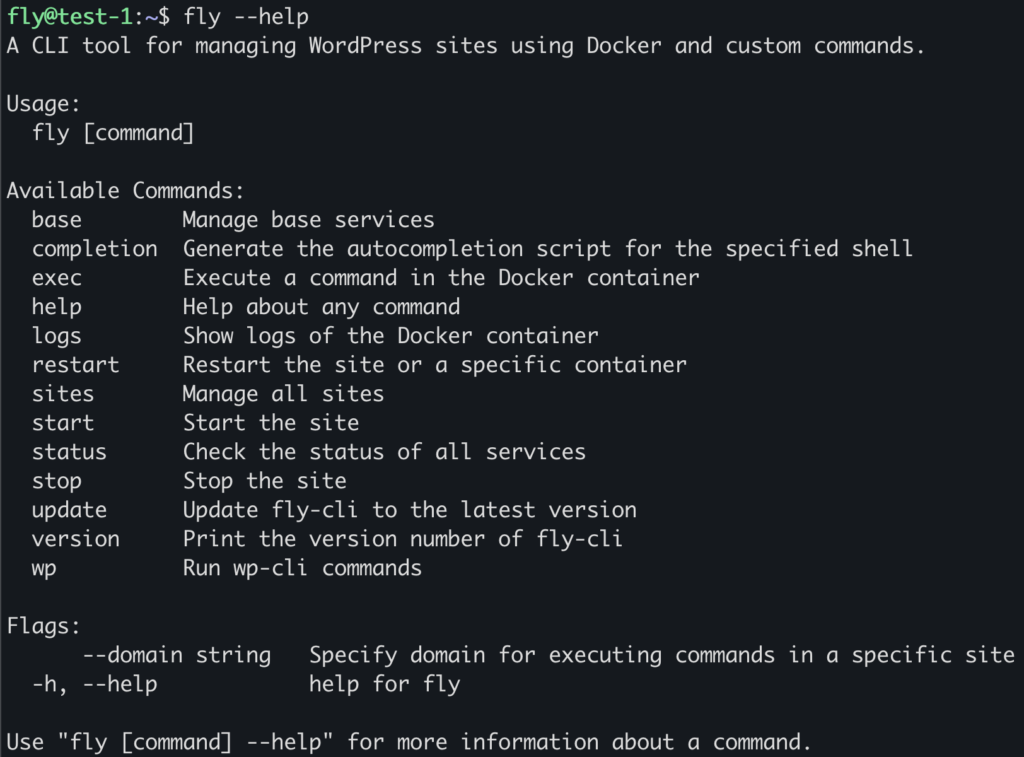
Getting Started with System Status
Section titled “Getting Started with System Status”Server CLI provides a quick system status check that helps with debugging the system
– Check System Status:
fly status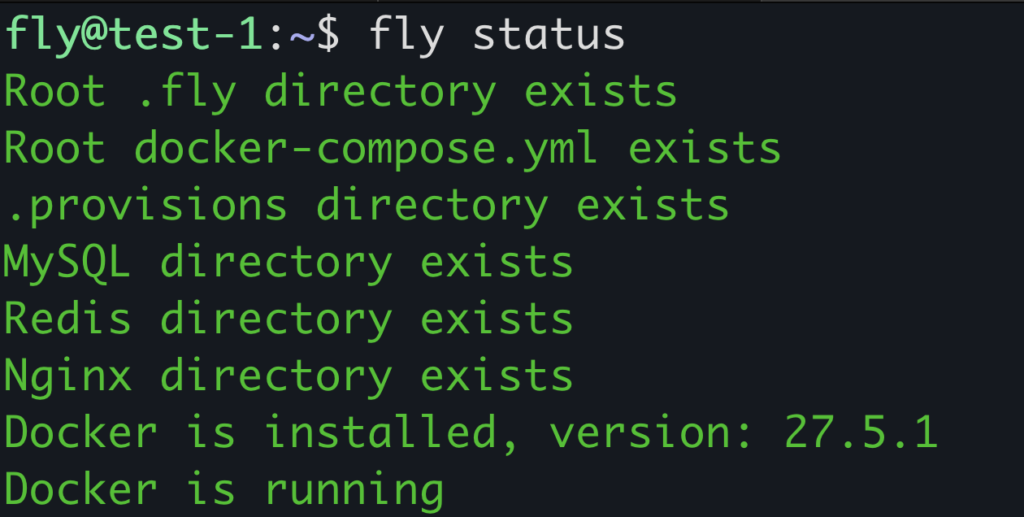
Managing Base Docker Compose
Section titled “Managing Base Docker Compose”FlyWP provides a base Docker-Compose configuration that includes MySQL, Redis, Ofelia, and Nginx Proxy. These services are the foundation for all sites hosted on your server. Here’s how you can manage them:
– Start Base Services:
fly base start– Stop Base Services:
fly base stop– Restart Base Services:
fly base restartManaging Your Sites
Section titled “Managing Your Sites”Now, let’s talk about managing your sites. You can run these commands from anywhere inside a site folder or by specifying the domain name. Super convenient, right?
– Start Your Website:
fly start --domain example.com– Stop Your Website:
fly stop --domain example.com– Restart Your Website:
fly restart --domain example.com– Execute WP-CLI Commands:
fly wp --domain example.com– View Logs:
fly logs --domain example.com– Restart a Container:
fly restart <container> --domain example.com– Execute Commands Inside a Container:
fly exec <container> --domain example.comPrefer working directly within the site directory? Or wish to avoid using the —domain flag? No problem! You can skip specifying the domain by being inside the site folder:
– `cd` Into Your Website:
cd example.com– Start Your Website:
fly start– Stop Your Website:
fly stop– Restart Your Website:
fly restart– Execute WP-CLI Commands:
fly wp– View Logs:
fly logs <container>– Restart a Container:
fly restart <container>– Execute Commands Inside a Container:
fly exec <container>WP-CLI at Your Fingertips
Section titled “WP-CLI at Your Fingertips”Need to run WP-CLI commands? Just use this command from anywhere in your website folder or specify the domain name. The CLI will find the right WordPress folder for you:
fly wp --domain example.com helpWant to install a plugin through the CLI and activate it at the same time?
Handy Global Commands
Section titled “Handy Global Commands”Here are some extra commands to help you debug your server installation and manage all your sites effortlessly:
– Check System Status:
fly status– Start All Sites:
fly sites start– Stop All Sites:
fly sites stop– Restart All Sites:
fly sites restartTricks and tips
Section titled “Tricks and tips”Passing WP CLI flags
Section titled “Passing WP CLI flags”You can pass flags required by WP-CLI by using ( -- ). Here is an example,
fly wp --domain example.com -- plugin list --format=csvWhat it’s doing is passing everything after ( –) to the WP CLI.
Database backup and repair
Section titled “Database backup and repair”You can also back up your database through Server CLI.
fly wp --domain example.com -- db export --skip-ssl - > ./site_name_date.sqlYou can restore this backup file with phpMyAdmin.
You can also repair your site database with Server CLI. To do that, you can run,
fly wp --domain example.com -- db repair --skip-sslAnd there you have it!
With FlyWP’s server-cli tool, managing your servers and sites is as easy as pie.
🍰 Happy hosting! If you have any questions or need further assistance, feel free to reach out. We’re here to help! 😊
Still stuck? How can we help?
View as Markdown