FlyWP Helper Plugin
A comprehensive guide to optimizing, securing, and managing your WordPress site with FlyWP Helper Plugin
Introduction to FlyWP Helper Plugin
Section titled “Introduction to FlyWP Helper Plugin”Overview
Section titled “Overview”FlyWP Helper Plugin is a lightweight, all-in-one solution designed to optimize WordPress performance, enhance security, and simplify site management. It can integrate seamlessly with your WordPress installation. It provides a good way to boost site speed and security, simplify WordPress Administration and enable seamless integration with the FlyWP hosting environment. This plugin is mainly aimed at WordPress Developers, site owners, and Agencies managing multiple WordPress installations.
Key Features
Section titled “Key Features”- Performance Optimization: FlyWP Plugin disables unnecessary scripts (emojis, embeds, jQuery Migrate) that can directly contribute to a site’s loading speed and performance.
- Security Enhancements: Remove version numbers, REST API links, and XML-RPC. These are some of the features that a hacker might abuse to gain access to a WordPress site.
- Admin Customisation: Clean up the WordPress dashboard and login page
- Caching: Nginx FastCGI Cache and PHP OPcache integration.
- Automation: Auto-updates and magic login via FlyWP.
Integration with FlyWP
Section titled “Integration with FlyWP”- Direct compatibility with FlyWP’s hosting infrastructure.
- Centralized management via FlyWP’s dashboard for updates, backups, and monitoring.
- Allows secure and convenient access to WordPress admin with FlyWP Magic Login.
WordPress Optimisation Features
Section titled “WordPress Optimisation Features”General Optimizations
Section titled “General Optimizations”Enable/Disable WordPress Optimizations
Section titled “Enable/Disable WordPress Optimizations”- Toggle Switch: A master switch to enable/disable all optimizations at once.
- Use Case: Temporarily disable optimizations during plugin/theme debugging, or when you wish to minimize unwanted variables.
Disable Emojis
Section titled “Disable Emojis”- What It Does: Removes the wp-emoji-release.min.js script, which adds emoji support for older browsers.
- Why Use It: Reduces JavaScript bloat; modern browsers natively support emojis and do not need anything extra for emoji support.
Disable Embeds
Section titled “Disable Embeds”- What It Does: Blocks others from embedding your site into another site.
- Why Use It: It prevents others from embedding your content, reduces server requests, and, most importantly, helps avoid impersonation.
Disable Self-Pingbacks
Section titled “Disable Self-Pingbacks”- What It Does: Stops your site from generating pingbacks when linking to its own posts.
- Why Use It: Eliminates unnecessary notifications and reduces database clutter.
Disable Comments
Section titled “Disable Comments”- What It Does: Globally disables comments across all posts, pages, and custom post types.
- Why Use It: Ideal for static sites or sites using third-party commenting systems (e.g., Disqus).
Disable jQuery Migrate Script
Section titled “Disable jQuery Migrate Script”- What It Does: Removes the jQuery migrate script, which is often unnecessary for modern themes.
- Why Use It: This is an unnecessary component of jQuery that normal users do not need. It reduces JavaScript conflicts and improves page load speed.
Clean Navigation Menu
Section titled “Clean Navigation Menu”- What It Does: Strips redundant CSS classes (e.g., menu-item-id-123) from navigation menus.
- Why Use It: Simplifies HTML output and improves readability for custom styling.
Disable RSS Feed
Section titled “Disable RSS Feed”- What It Does: Disables RSS/Atom feeds and redirects feed URLs to the homepage.
- Why Use It: Forces users to consume content directly on your site.
Disable XML-RPC
Section titled “Disable XML-RPC”- What It Does: Blocks the XML-RPC protocol, which is often exploited in brute-force attacks.
- Why Use It: Mitigates security risks if you don’t use Jetpack or mobile apps.
Admin Area Customization
Section titled “Admin Area Customization”Remove WordPress Logo
Section titled “Remove WordPress Logo”- What It Does: Hides the WordPress logo from the admin toolbar.
- Why Use It: Brand the admin area for clients or reduce visual clutter.
Show Login Logo
Section titled “Show Login Logo”- What It Does: Replaces the default WordPress logo on the login page with your site’s logo.
- Why Use It: Reinforces branding and professionalism.
Remove Dashboard Widgets
Section titled “Remove Dashboard Widgets”- What It Does: Clears default widgets (e.g., “At a Glance,” “Activity”) from the WordPress dashboard.
- Why Use It: Simplifies the admin interface for clients or streamlines workflows.
Site Header Customization
Section titled “Site Header Customization”Remove Feed Links
Section titled “Remove Feed Links”- What It Does: Removes <link> tags for RSS/Atom feeds in the site header.
- Why Use It: Reduces header size and prevents feed discovery.
Remove RSD Link
Section titled “Remove RSD Link”- What It Does: Eliminates the rel=”EditURI” link used by legacy blogging tools.
- Why Use It: Closes a potential security loophole.
Remove WP Version Number
Section titled “Remove WP Version Number”- What It Does: Hides the WordPress version (e.g., ?ver=6.2) from the site header.
- Why Use It: Prevents attackers from targeting known vulnerabilities in outdated versions.
Remove REST API Links
Section titled “Remove REST API Links”- What It Does: Disables the rel=”https://api.w.org/” link in the header.
- Why Use It: Reduces unnecessary HTTP headers if the REST API isn’t used.
Remove Shortlink
Section titled “Remove Shortlink”- What It Does: Removes the rel=”shortlink” tag (e.g., ?p=123).
- Why Use It: Prevents URL scraping and shortlink abuse.
Remove oEmbed Discovery Links
Section titled “Remove oEmbed Discovery Links”- What It Does: Disables rel=”alternate” links for oEmbed discovery.
- Why Use It: Stops third-party services from embedding your content.
Auto Update Helper
Section titled “Auto Update Helper”Auto Plugin Update
Section titled “Auto Plugin Update”- How It Works: The FlyWP plugin provides important data that determines when a new version of the WordPress plugin is available.
- Benefits:
- Ensures that users know about any available update and allows them to bulk update everything promptly and conveniently.
- Reduces manual maintenance for site owners.
Magic Login
Section titled “Magic Login”- How It Works: Allows one-click login to WordPress via FlyWP’s dashboard without entering credentials.
- Security: Uses encrypted tokens for authentication, bypassing traditional username/password.
Page Cache & Performance Enhancements
Section titled “Page Cache & Performance Enhancements”Nginx FastCGI Cache
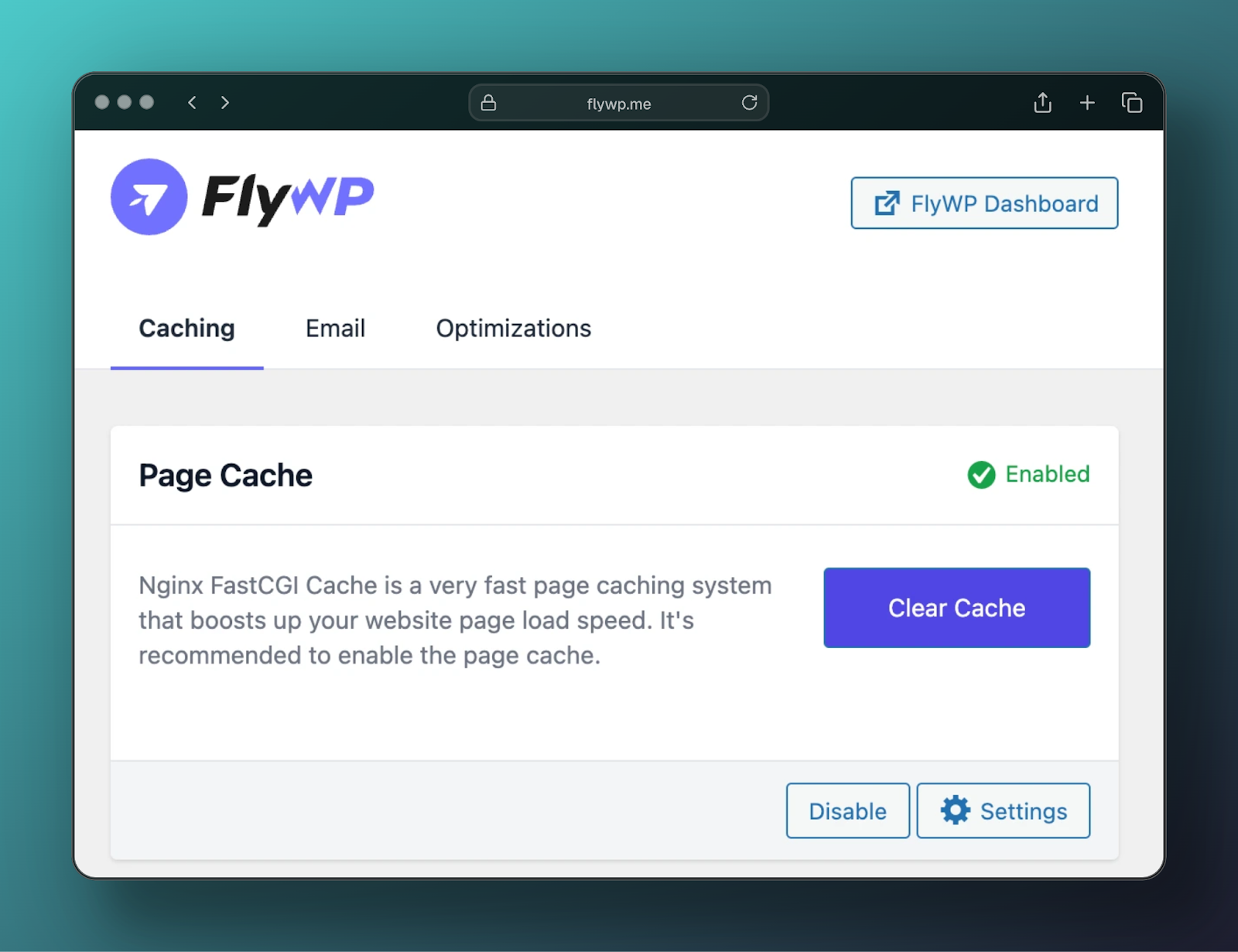
Section titled “Nginx FastCGI Cache”- What It Is: A server-level caching mechanism that stores static HTML versions of pages.
- Benefits:
- Reduces PHP/MySQL load by serving cached pages.
- Ideal for high-traffic sites.
- Configuration: Enable via the plugin settings; exclude dynamic pages (e.g., WooCommerce cart).
PHP OPcache
Section titled “PHP OPcache”- What It Is: A PHP accelerator that caches compiled script bytecode in memory.
- Benefits:
- Eliminates the need to recompile scripts on each request.
- Improves PHP execution speed by up to 50%.
- Monitoring: Check OPcache status (memory usage, hits, misses) via the plugin’s dashboard.
Testing Email Configuration
Section titled “Testing Email Configuration”Why Test Emails?
Section titled “Why Test Emails?”- Verify that contact forms, password resets, and notifications work correctly.
- Diagnose issues with SMTP configurations or email deliverability.
How to Send a Test Email
Section titled “How to Send a Test Email”- Navigate to FlyWP Helper > Email Test.
- Enter an email address and click “Send Test Email.”
- Check the inbox/spam folder for the test message.
Usefulness of FlyWP Helper Plugin
Section titled “Usefulness of FlyWP Helper Plugin”Performance Optimization
Section titled “Performance Optimization”- Speed: Reduces server load and HTTP requests by disabling unnecessary features.
- Scalability: Nginx FastCGI Cache ensures smooth performance during traffic spikes.
Enhanced Security
Section titled “Enhanced Security”- Attack Surface Reduction: Removes version numbers, REST API links, and XML-RPC.
- Brute-Force Protection: Disabling XML-RPC blocks common attack vectors.
Simplified Administration
Section titled “Simplified Administration”- Client-Friendly: Clean admin interface with branded login pages.
- Automation: Auto-updates and magic login reduce manual tasks.
Improved User Experience
Section titled “Improved User Experience”- Faster Load Times: Optimized headers and caching improve Core Web Vitals.
- Cleaner Code: Stripped-down navigation menus and headers enhance SEO.
Developer-Friendly
Section titled “Developer-Friendly”- Granular Control: Toggle individual optimizations without editing functions.php.
- Debugging Tools: Email testing and OPcache monitoring simplify troubleshooting.
Installation & Setup
Section titled “Installation & Setup”Installation
Section titled “Installation”- Go to Plugins > Add New in WordPress.
- Search for “FlyWP Helper” and install it.
- Activate the plugin.
Configuration
Section titled “Configuration”- Access settings via FlyWP Helper > Settings.
- Enable/disable features based on your needs (e.g., disable comments for static sites).
Best Practices
Section titled “Best Practices”- Test caching on a staging site before enabling it on production.
- Keep auto-updates enabled for security patches.
Troubleshooting & FAQs
Section titled “Troubleshooting & FAQs”Common Issues
Section titled “Common Issues”- Broken Features: Re-enable jQuery migration if a plugin relies on it.
- Caching Conflicts: Exclude dynamic pages (e.g., WooCommerce) from Nginx FastCGI Cache.
- Conflict with webpages: Can conflict with page design and navigation bar designs due to default optimisations.
Conflicts
Section titled “Conflicts”The FlyWP plugin has conflicts with the following Plugins and these interfere with FlyWP plugins Functionality. Please note that this list is only for known conflicts and not an exhaustive list.
- Airlift [API and other related functionalities]
- WP Rocket [Caching and other related functionalities]
- WP Optimize page cache [API and other related functionalities]
- Q: Do I need a FlyWP account to use this plugin?
A: Yes, this plugin is designed specifically for FlyWP-managed WordPress sites. - Q: Does disabling XML-RPC break Jetpack?
A: Yes, re-enable it if you use Legacy Jetpack or mobile apps. - Q: Can I customise the login logo without coding?
A: Yes, upload a logo via the WordPress settings. - Q: What if it breaks something?
A: Try disabling all optimization to see if it fixes it. Afterwards, try enabling each optimization one by one to see what is causing this issue. If not, please reach out to our support at [email protected].
Conclusion
Section titled “Conclusion”FlyWP Helper Plugin is a powerful tool for optimizing, securing, and managing WordPress sites with minimal effort. By combining performance tweaks, security hardening, and workflow automation, it empowers users to focus on content creation rather than backend maintenance. Explore its features to unlock the full potential of your WordPress site.
Still stuck? How can we help?
View as Markdown