How to Manage Server/Site Page
Hello FlyWP users! Good news for you! We have recently added an enhancement for you.
You’ll now see an option called “manage” in the server and site management. Using this section, you can manually configure some options for your website.
Let’s check them one by one:
Server management page
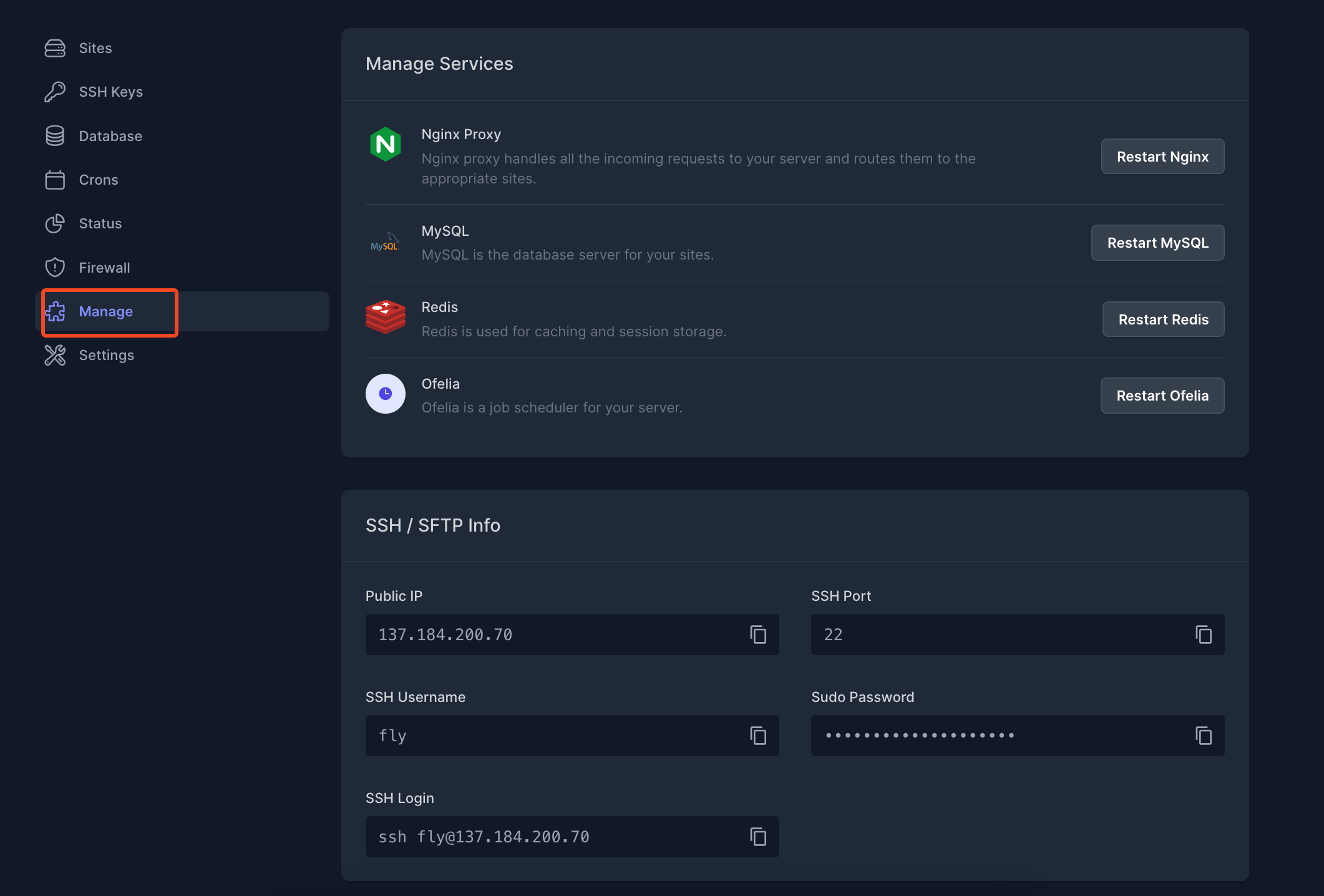
Section titled “Server management page”First, on the server page, you will see the “manage” section. Click here, and you’ll find the service management option and SSH/SFTP info.
In the services, you can restart the Nginx proxy, MySQL, Redis, and Ofelia. Also, in the SSH and SFTP info section, you can set the public IP, SSH port, SSH username, Sudo password, and SSH login.
How to enable these features
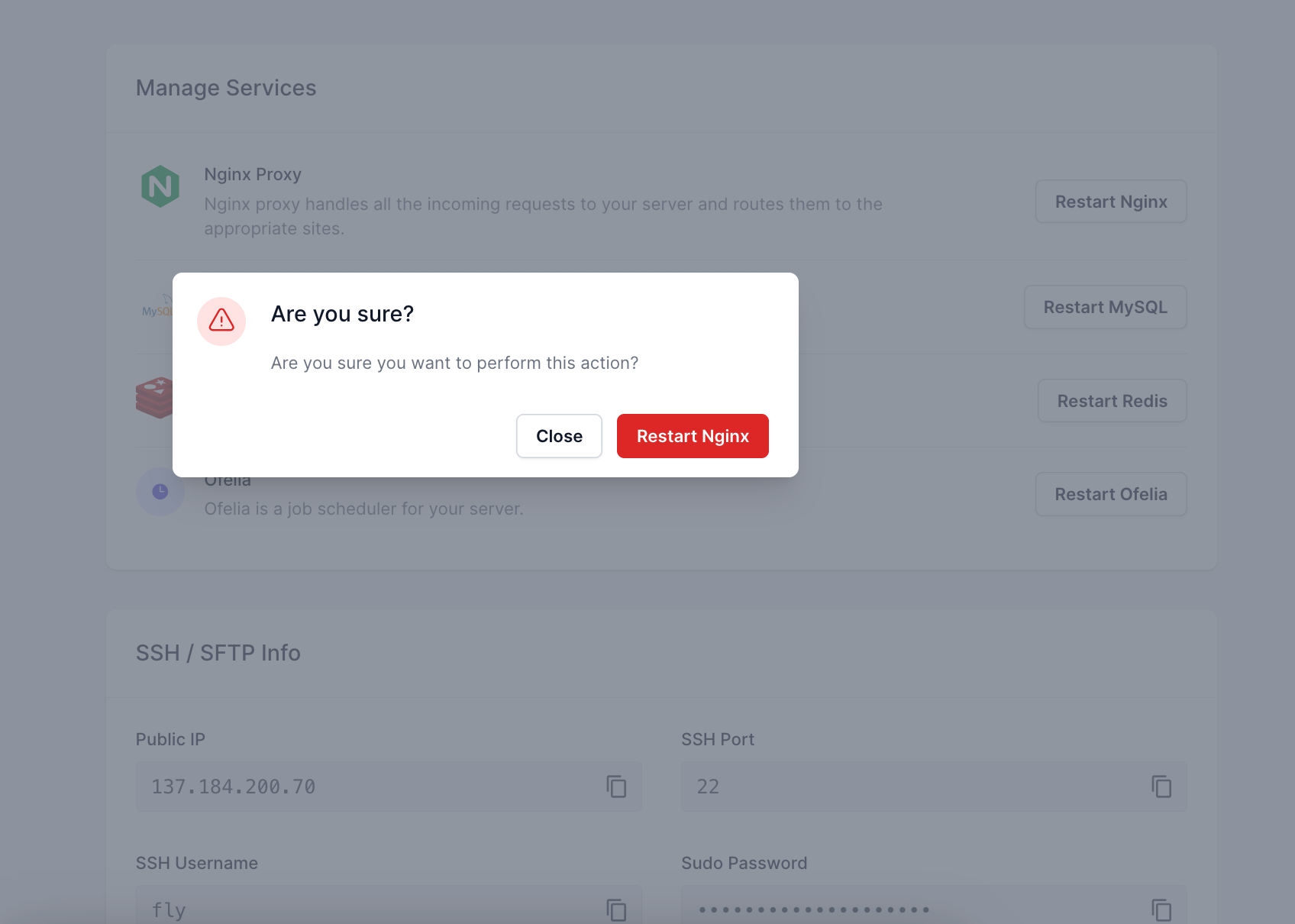
Section titled “How to enable these features”Just click on “restart Nginx,” and then it will start the feature.
Site management page
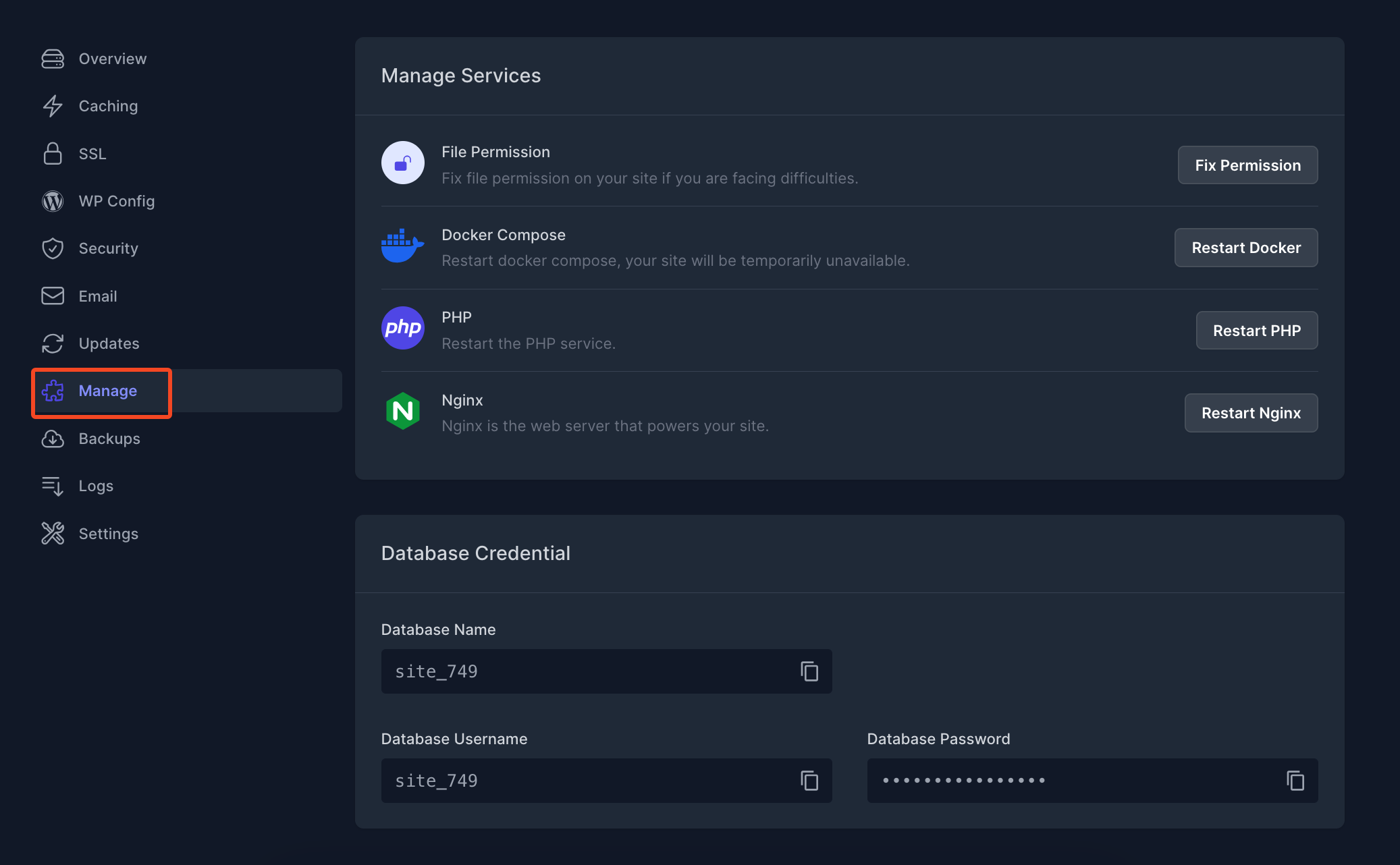
Section titled “Site management page”Similarly, in the site management tab, you’ll see the related options. Like service management and database credentials.
Service management: You can edit file permission, docker-compose, PHP, and Nginx.
Database credential: Here you can configure the database name, database username, and password.
How to enable these features
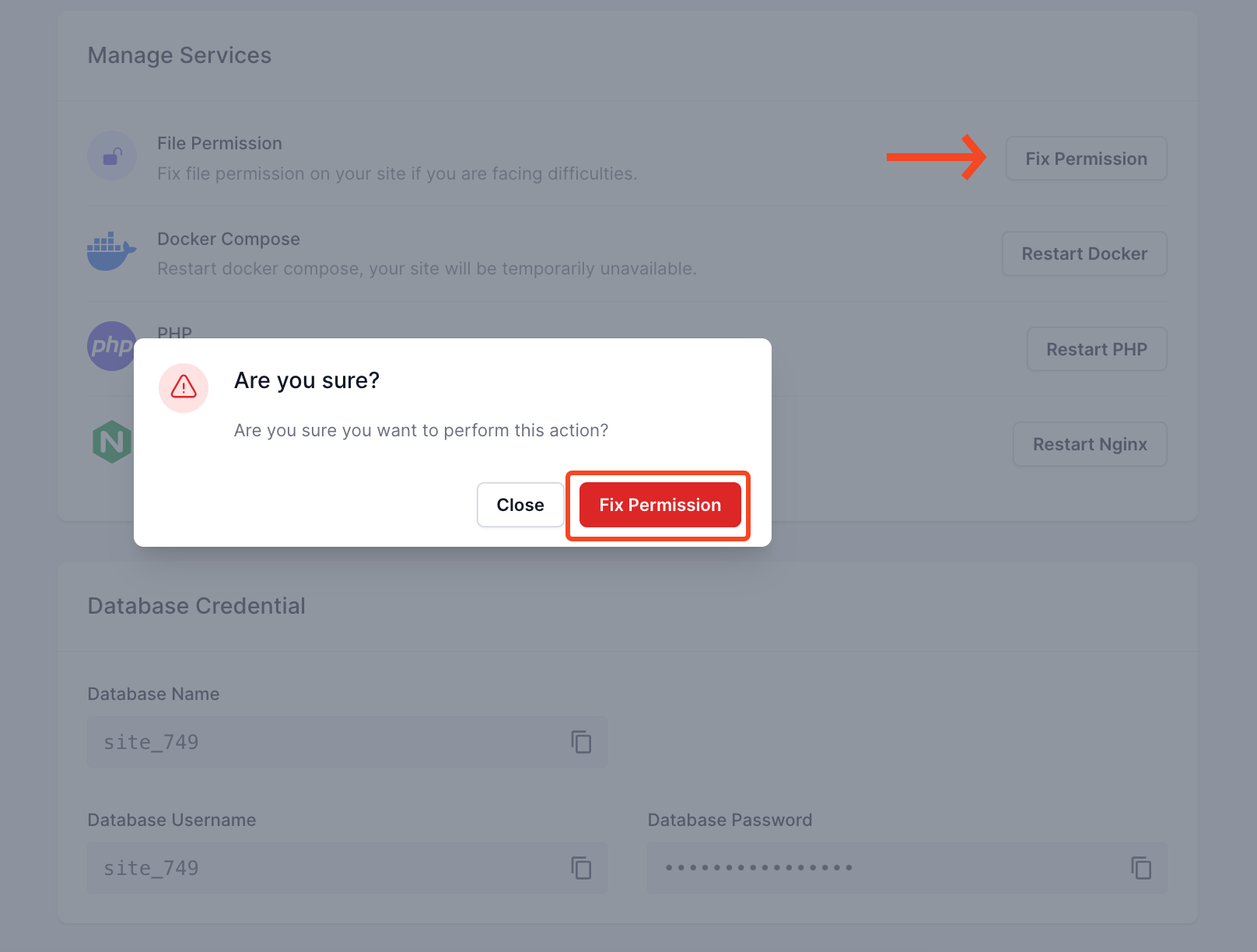
Section titled “How to enable these features”Click on the button, and you’ll be asked whether to enable this feature or not. Just click “fix permission,” and that’s all. It will fix the issue.
This is how you can configure the page management feature of FlyWP.
Still stuck? How can we help?
View as Markdown