Site-Specific SFTP Access
FlyWP enhances your server security and workflow by providing isolated SFTP (Secure File Transfer Protocol) access for each individual site. Instead of using server-level credentials, you can create dedicated SFTP users who only have access to the files and folders of a specific WordPress installation.
This is particularly useful when you need to grant file-level access to developers, contractors, or team members without compromising the security of other sites on the same server.
Navigating to the SFTP Management Area
Section titled “Navigating to the SFTP Management Area”To manage SFTP for a specific site, follow these steps:
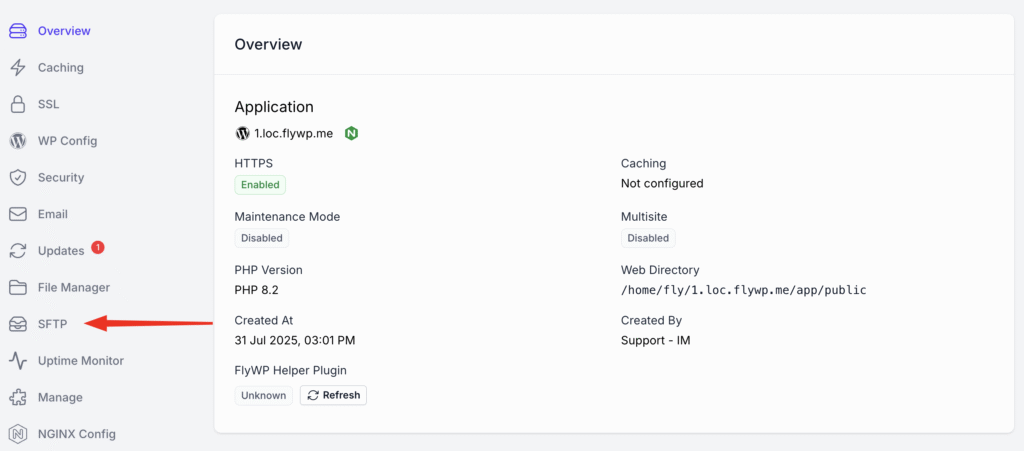
- First, go to your Site dashboard.
- In the Site Dashboard, select the SFTP tab.
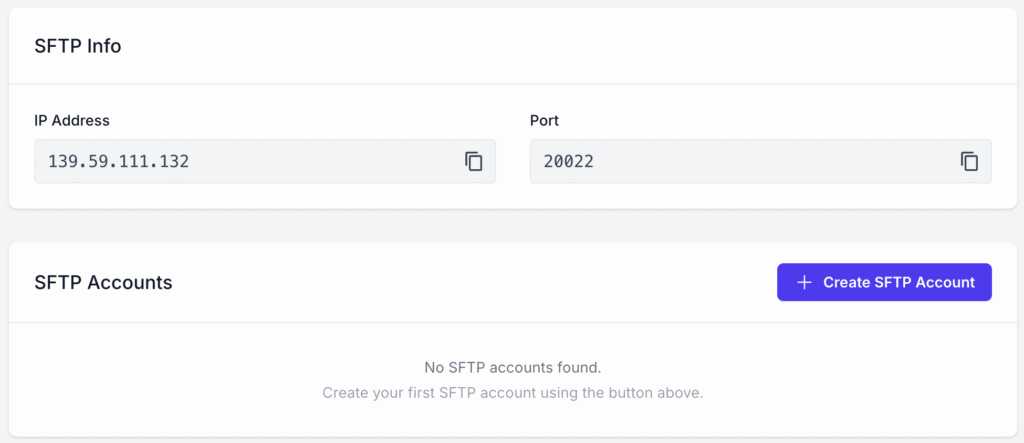
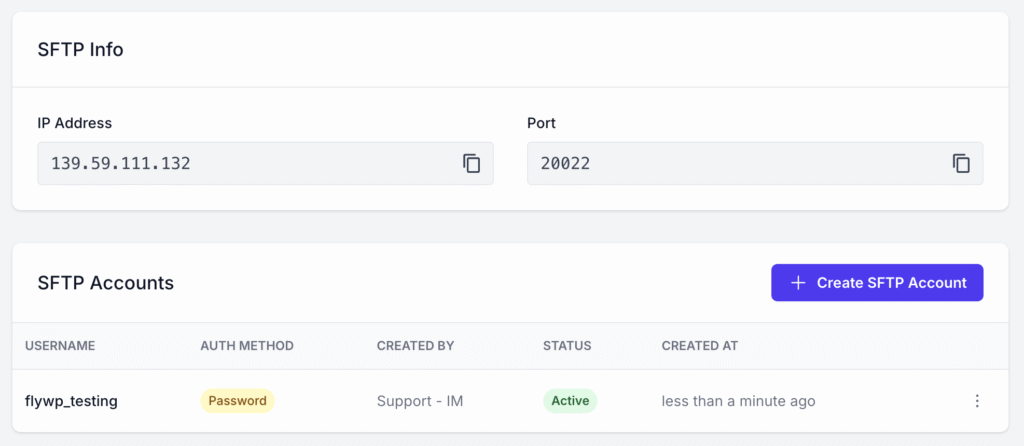
Here you will find the SFTP connection information (IP Address and Port) and a section to manage SFTP accounts for this site. By default, no SFTP account exists.
Creating a New SFTP Account
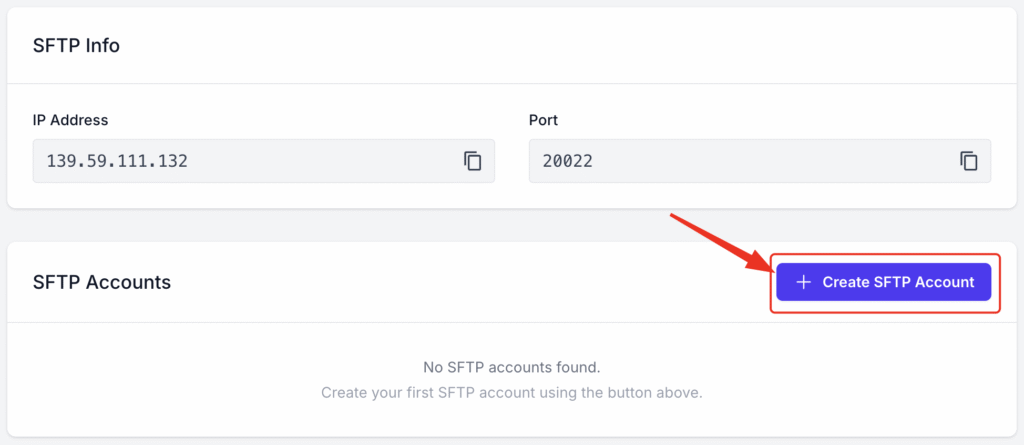
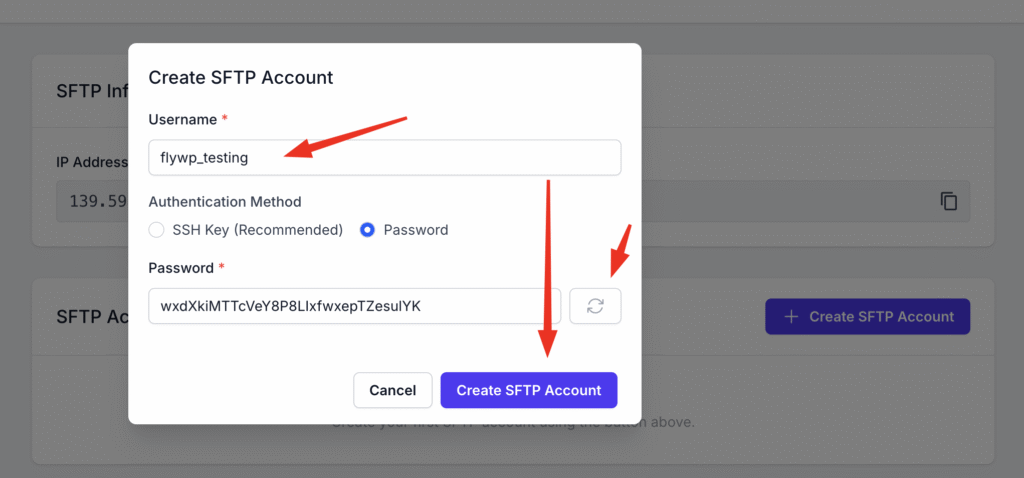
Section titled “Creating a New SFTP Account”Click the + Create SFTP Account button to bring up a window to create a new account. You have two methods for authentication: SSH Key (recommended) and Password.
Authentication Method 1: SSH Key (Recommended)
Section titled “Authentication Method 1: SSH Key (Recommended)”Using an SSH key is the most secure way to manage SFTP access. It uses a pair of cryptographic keys to authenticate the user, which is significantly harder to breach than a password.
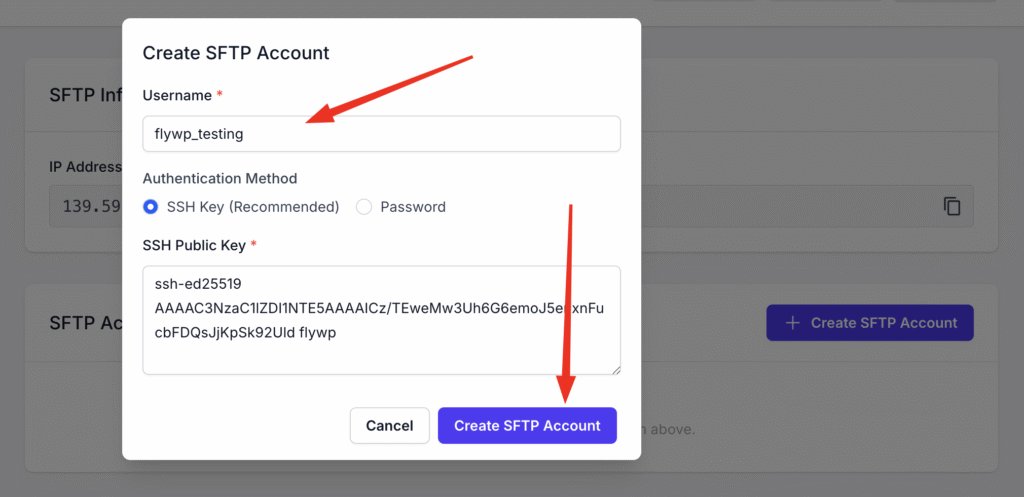
- Username: Enter a unique username for the account.
- Authentication Method: Select SSH Key.
- SSH Public Key: Paste the user’s public SSH key into the text field.
Click Create SFTP Account to provision the new user.
Authentication Method 2: Password
Section titled “Authentication Method 2: Password”If you prefer to use a password, you can select this option. Ensure you create a strong, unique password.
- Username: Enter a unique username.
- Authentication Method: Select Password.
- Password: Enter a strong password. The password must be at least 16 characters long and can only contain letters, numbers, and underscores.
Click Create SFTP Account to finish.
Connecting via SFTP & Understanding the Filesystem
Section titled “Connecting via SFTP & Understanding the Filesystem”To connect to your site, you will use the IP address from the SFTP Info section, your created username and password/SSH key, and the port 20022. The SFTP port is always 20022 for any site managed by FlyWP.
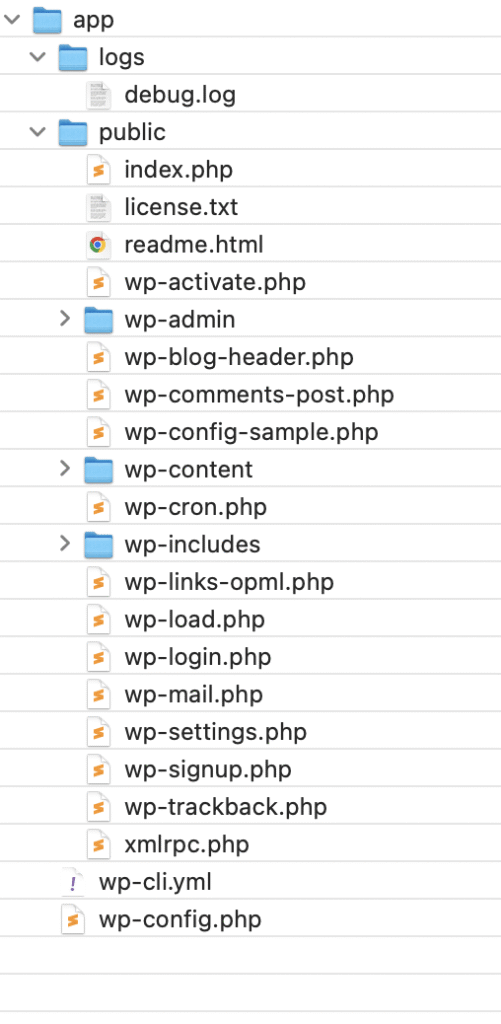
When you connect, you will be placed in the /app/ directory. This is the root directory for your site’s container. The file structure is organised as follows:
- /app/public/ : This folder contains your WordPress installation. All the core files and directories, such as wp-admin, wp-content, and wp-includes, are located here. You will do most of your work in this directory.
- /app/logs/ : This directory contains logs, including the WordPress debug.log file, which can be helpful for troubleshooting.
Here is a visual representation of the file structure:
Managing SFTP Accounts
Section titled “Managing SFTP Accounts”Once an account is created, it will appear in the SFTP Accounts list. The provisioning process typically takes less than a minute. You can see the status of the new account, along with who created it and when.
Deleting an SFTP Account
Section titled “Deleting an SFTP Account”To remove an SFTP account:
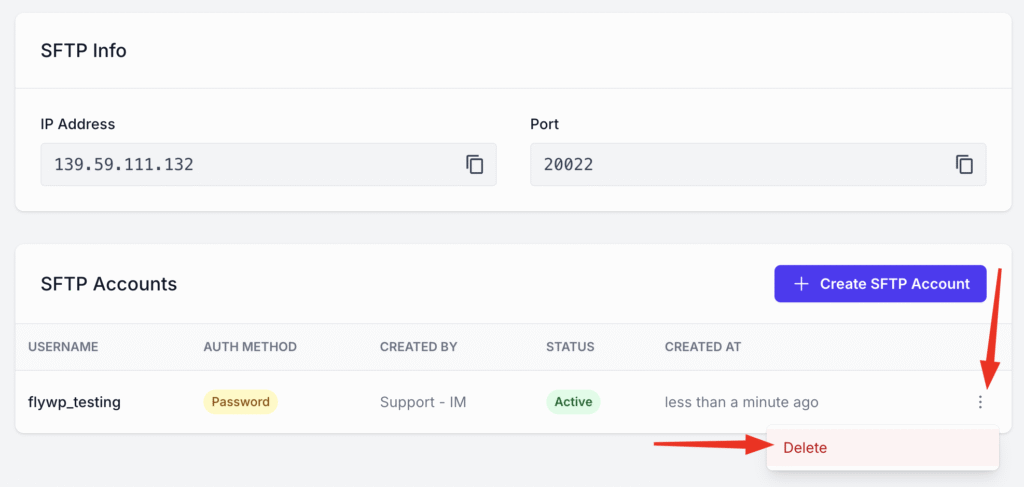
- Locate the account in the list.
- Click the three-dot menu on the far right of the account row.
- Select Delete from the dropdown menu.
By using site-specific SFTP accounts, you can maintain a secure and efficient workflow for managing your WordPress sites on FlyWP.
Still stuck? How can we help?
View as Markdown